 EN
EN FR
FRHello !
Dark and light themes are popular display modes in today's digital age. Dark or light themes are simply user preferences.
To switch between light and dark themes in Home-Assistant you should go to the profile settings and modify it directly from there. This is not very practical, especially if Kiyosk mode is enabled on the device. So in this article, I will describe how to change the theme from the frontend.
To do this, we need to install the "BrowserMod" integration from HACS. Follow the instructions in this link to install BrowserMod.
Note: Don't forget to enable the browser mod after installation (refer to the picture below) and give a browser ID for your device.

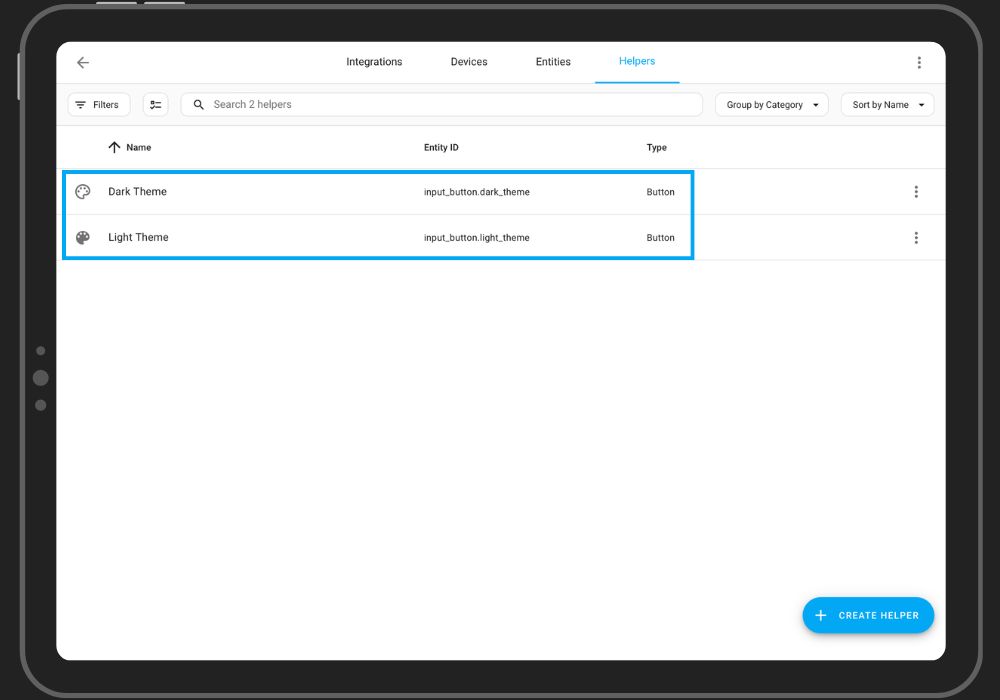
- Create two separate buttons for the light and dark themes from the "Helpers" section of the Home-Assistant settings
- Follow the code below to add a vertical stack card with light and dark theme buttons to your Home-Assistant Frontend (I am using Mushroom Card).
                type: vertical-stack
                cards:
                  - type: custom:mushroom-template-card
                    primary: Theme Selection
                    secondary: ''
                    icon: mdi:home-switch-outline
                    icon_color: gray
                    fill_container: true
                    tap_action:
                      action: none
                    hold_action:
                      action: none
                    double_tap_action:
                      action: none
                    multiline_secondary: false
                    layout: horizontal
                    badge_icon: ''
                    badge_color: ''
                  - type: horizontal-stack
                    cards:
                      - type: custom:mushroom-entity-card
                        entity: input_button.dark_theme
                        secondary_info: none
                        tap_action:
                          action: toggle
                        icon: mdi:palette
                        icon_color: black
                        name: Set Dark Theme
                        layout: vertical
                      - type: custom:mushroom-entity-card
                        entity: input_button.light_theme
                        secondary_info: none
                        tap_action:
                          action: toggle
                        icon: mdi:palette-outline
                        icon_color: grey
                        name: Set Light Theme
                        layout: vertical
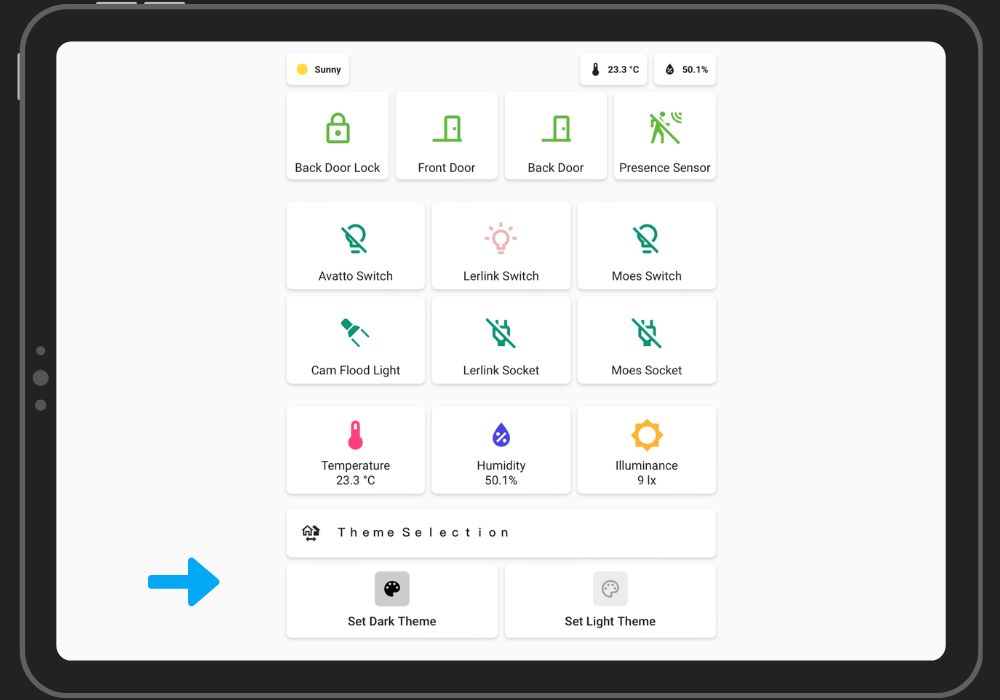
- Now let's move on to the final step, which is to create two different automations to set the light and dark theme depending on which button is pressed (light theme or dark theme).
Code for creating an automation for "Light Theme" :
                alias: Set Light Theme
                description: ""
                trigger:
                  - platform: state
                    entity_id:
                      - input_button.light_theme
                condition: []
                action:
                  - service: browser_mod.set_theme
                    data:
                      dark: light
                      deviceID:
                        - office-ipad
                mode: single
                initial_state: "on"
Code for creating an automation for "Dark Theme" :
                alias: Set Dark Theme
                description: ""
                trigger:
                  - platform: state
                    entity_id:
                      - input_button.dark_theme
                condition: []
                action:
                  - service: browser_mod.set_theme
                    data:
                      dark: dark
                      deviceID:
                        - office-ipad
                mode: single
                initial_state: "on"

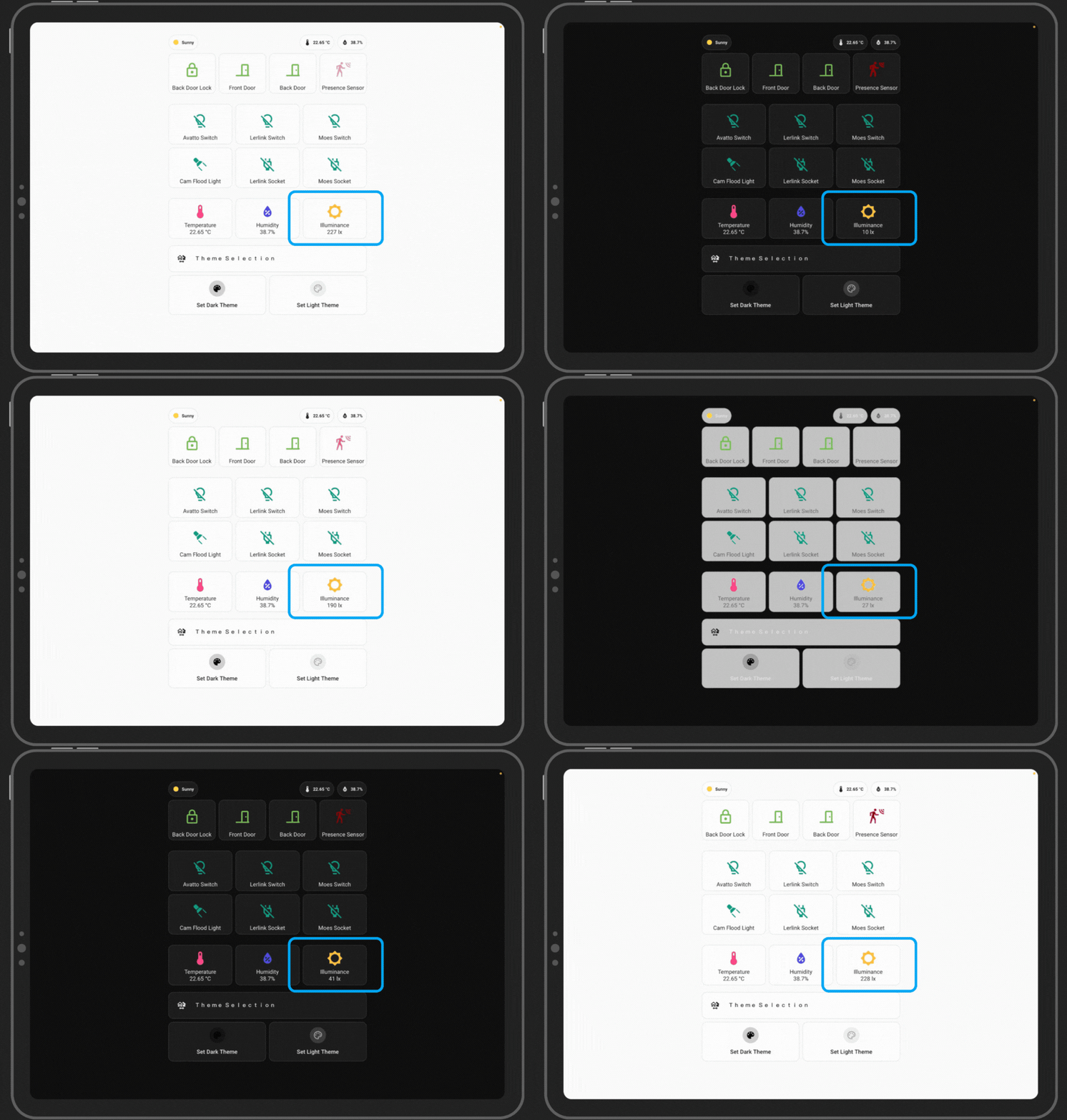
Changing theme automatically based on the light conditions :
- The code below shows an automation that switches the theme from light to dark after sunset or when the light value goes below 80lux.
- I am using Zigbee presence sensor from Avatto (Which has an illuminance sensor built-in)
                alias: Dark/Light Theme
                description: ""
                trigger:
                  - platform: numeric_state
                    entity_id:
                      - sensor.avatto_presence_sensor_illuminance_lux
                    below: 80
                    id: dark
                  - platform: numeric_state
                    entity_id:
                      - sensor.avatto_presence_sensor_illuminance_lux
                    above: 80
                    id: light
                  - platform: sun
                    event: sunrise
                    offset: 0
                    id: rise
                  - platform: sun
                    event: sunset
                    offset: 0
                    id: set
                condition: []
                action:
                  - choose:
                      - conditions:
                          - condition: trigger
                            id:
                              - dark
                              - set
                        sequence:
                          - service: input_button.press
                            metadata: {}
                            data: {}
                            target:
                              entity_id: input_button.dark_theme
                      - conditions:
                          - condition: trigger
                            id:
                              - light
                              - rise
                        sequence:
                          - service: input_button.press
                            metadata: {}
                            data: {}
                            target:
                              entity_id: input_button.light_theme
                mode: single
Final result :
Thank you note !
I want to personally thank you for reading my article. Your time and attention are greatly appreciated, and it means a lot to me that you took the time to engage with my content.
Your support and feedback are invaluable, and I am grateful for the opportunity to share my thoughts and ideas with you. Whether you left a comment, shared the article, or read it, your participation helps fuel my passion for writing and motivates me to keep creating content that resonates with readers like you.
Please feel free to reach out if you have any thoughts, questions, or feedback about the article. I love hearing from my readers and learning about your perspectives.
Once again, thank you for your support. I look forward to sharing more with you soon.